
Using Hyla
Sessions & Projects
Hyla organizes your work in two levels: projects (folders) hold sessions (tasks), and every session keeps running in hylad until you close it.
Default is the home folder's project. It comes first in the sidebar whatever order you drag projects into, its sessions start in ~, and Hyla opens on its latest session, starting one when it has none.
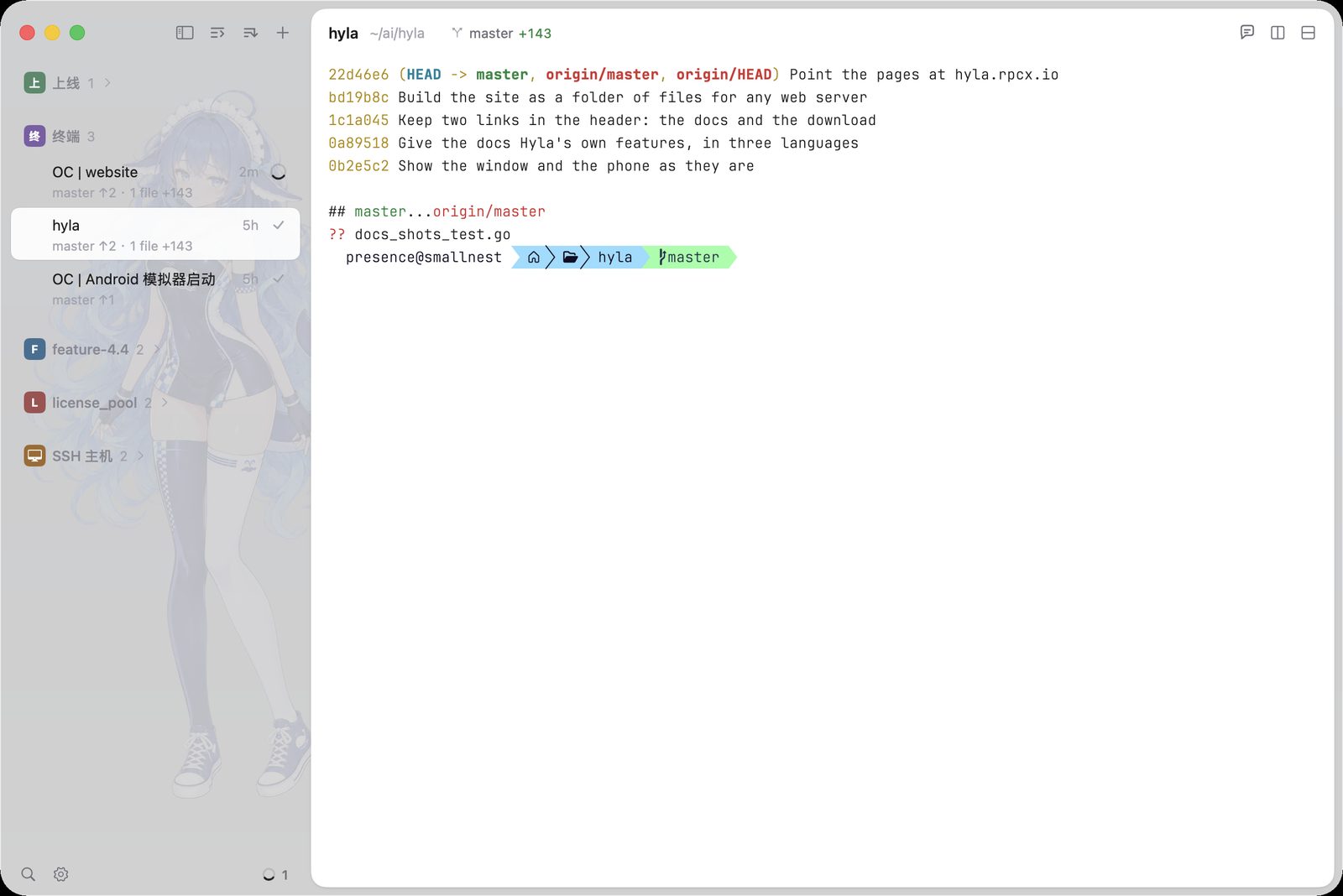
Projects hold the day's sessions, and the sidebar says what each one is doing.
Sessions
A session is a unit of work: one task, one agent, one long-running process.
While an agent runs, its own mark sits before the session's name — Claude Code's, Codex's, OpenCode's, DeepSeek Harness's, and the rest — so a glance down the sidebar tells which agent is working where. A session running no agent shows none, and neither does an agent whose makers drew no mark. It holds one or more panes, each running a shell or a program.
| Action | Shortcut |
|---|---|
| New session | ⌘ T |
| New session in home folder | ⌘ ⇧ T |
| Go to session… | ⌘ P |
| Resume a conversation… | ⌘ ⇧ O |
| Jump to session needing you | ⌘ J |
| Next / previous session | ⌘ ⇧ ] / [ |
| Rename session | ⌘ R |
| Close session | ⌘ ⇧ W |
Name sessions after their task, such as fix-login-redirect or review-pr-42, so you can find them in the sidebar and target them from the CLI.
Where a new session starts
The new-session-directory setting picks the folder:
current(default): the directory of the session you're inproject: the project's root folderhome: your home folder
How an unnamed session is named
Until you or an agent name a session, the session-name setting (Name sessions after in Settings) picks what the sidebar shows:
focused(default): the title of the program in the pane you're in. A pane running only its shell defers to the pane that needs you most.lead: the title of the program in the pane that needs you most, such as an agent that's working or waiting on youfolder: the first pane's folder, whatever runs in it
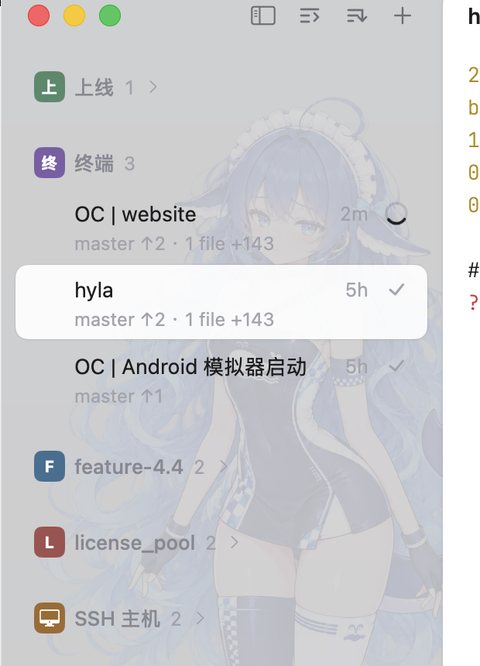
The sidebar, up close: a project, its sessions, their branches and statuses.
Projects
A project is a folder. Hyla groups sessions under their project in the sidebar. Open one with ⌘ O, drag folders from your file manager into the sidebar, or let hyla new pick it by the directory a session starts in. Dropping folders opens one session per unique project; folders already registered reuse their project. Native folder drops always open on This Computer, even when a remote session is selected. Files and inaccessible folders are rejected. On macOS, file packages such as .app bundles are rejected too, matching the Open Project folder picker.
hyla projects            # list projects
hyla new -p my-app       # start a session in a project by name
SSH hosts
The sidebar's + offers Add SSH Host. Type an address as ssh takes it, such as root@example.com:2222, and a name (the address's host by default): Hyla opens a terminal running ssh to that machine. It is ssh in a terminal like any other, with your ~/.ssh/config, keys and agent; the machine needs an SSH server and nothing else, no Hyla.
All the machines live in one project, SSH Hosts, with the host's icon. Each row is a machine, its name over the address ssh runs to; a click shows its terminal, or starts one. The project's +, or Add SSH Host in the sidebar's + menu, adds another machine, and a right-click removes one.
K8s pods
The sidebar's + offers Add K8s Pod too. Type a command as kubectl exec takes it, such as kubectl exec -it web-0 -n prod -- /bin/bash: Hyla opens a terminal running it on this computer, with your kubeconfig, and names the pod from the command.
The pods live in one project, K8s Pods, with the Kubernetes icon. Each row is a pod, its name over its command; a click shows its terminal, or starts one, + adds another, and a right-click removes one.
hylad
Sessions run in hylad, a daemon that the app starts on demand. Hyla is a window onto hylad:
- Quitting Hyla leaves every session running.
- Opening Hyla again shows every session as it was, scrollback included.
- After hylad itself restarts, such as after a reboot, Hyla starts your sessions again in their directories. Turn this off with
restore-sessions = false. - A pane that was running Claude Code, Codex, Pi, OpenCode or DSH resumes its conversation, as the agent's own resume option would, once Hyla's skill is set up for that agent. Other programs don't start again unasked: their pane comes back at a shell. Turn this off with
resume-agents = false.
hyla daemon status       # is hylad running?
hyla daemon restart      # restart it (sessions start again)
hyla daemon stop         # stop it and end every session
Quitting
Quitting Hyla keeps the sessions running, so that opening it again shows them, as they were. To have quitting end them, as Quit and End All Sessions does, set quit-ends-sessions = true. Then every quit ends this machine's sessions and their programs, and stops hylad. This applies to the close button, ⌘Q and the menu. Hyla asks first while a program runs, as confirm-close says. Sessions on other machines keep running.
quit-ends-sessions = true