
Using Hyla
Panes
Split a session to run things side by side: an agent on the left, its dev server on the right, a test watcher below.
| Action | Shortcut |
|---|---|
| Split right | ⌘ D |
| Split down | ⌘ ⇧ D |
| Zoom pane | ⌘ ⇧ ↩ |
| Next / previous pane | ⌘ ] / [ |
| Move between panes | ⌘ ⌥ ← → ↑ ↓ |
| Restart pane | ⌘ ⇧ R |
| Close pane | ⌘ W |
Zoom fills the session with one pane; press it again to bring the others back.
When a pane's program exits, the pane stays so you can read its output. Restart Pane starts its shell again in the same directory.
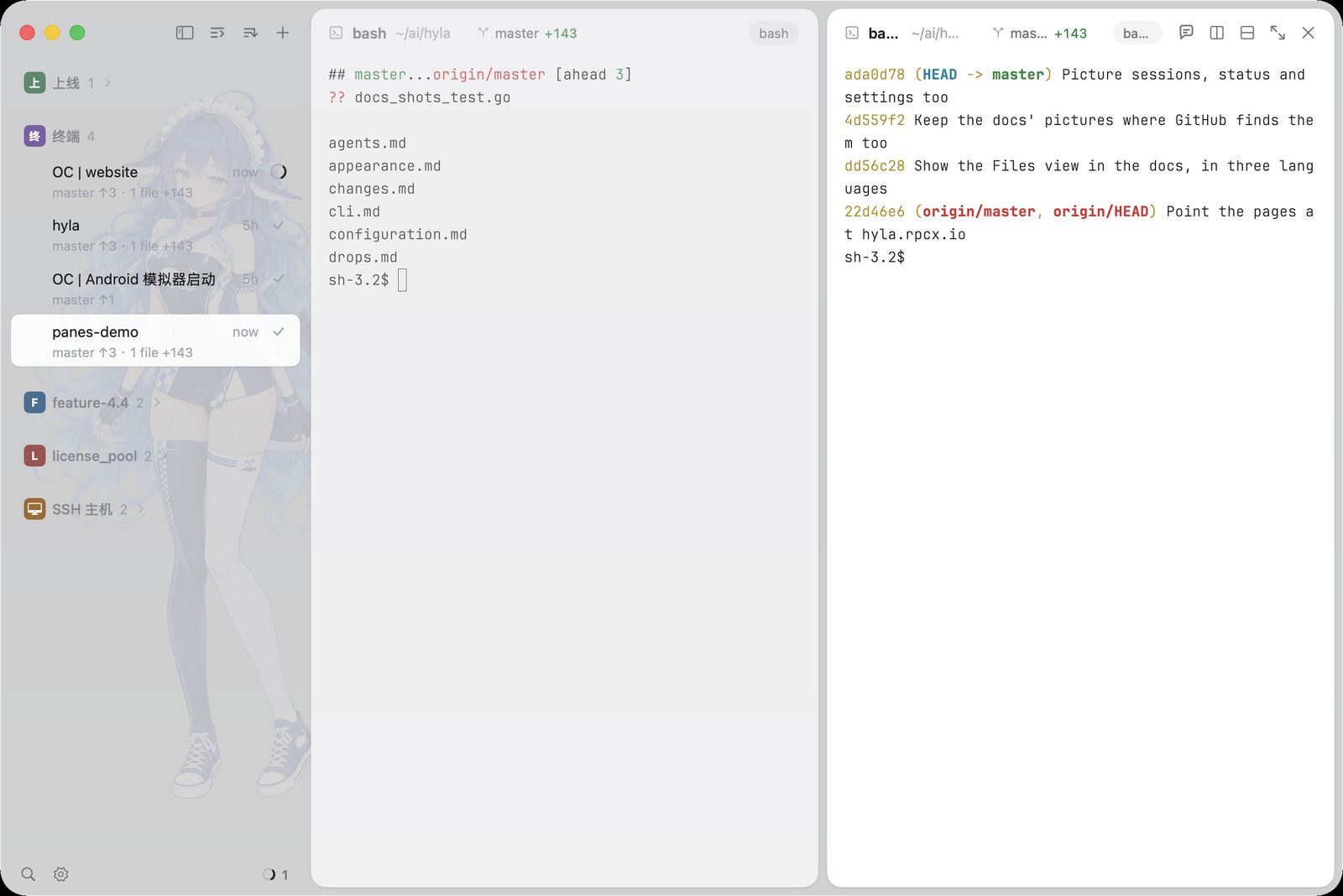
Two panes of one session, each with its own shell, working in the same folder.
From the command line
hyla split starts a pane beside another and prints its id:
hyla split --down -- npm run dev
hyla split --right --ratio 0.3 -- go test ./... -count=1
| Flag | Meaning |
|---|---|
--right (default), --down, --left, --up |
Where the new pane goes |
-r, --ratio <0..1> |
The new pane's share of the space (default 0.5) |
-d, --dir <dir> |
Start it in another directory |
-w, --wait |
Wait for its command to end, and exit with its status |
-u, --url <url> |
Open a browser showing the page instead of a shell |
Run inside Hyla, hyla split splits the pane it runs in. Elsewhere, name a target: hyla split my-session --down.
Browser panes
A browser pane shows a web page beside your terminals: the dev server an agent is working on, the docs it reads, the pull request it opened. It splits, zooms, moves and closes like any pane, and comes back on the same page when Hyla restarts.
| Action | Shortcut |
|---|---|
| New browser pane | ⌘ ⇧ B |
| Open location | ⌘ L |
Type an address in its bar, such as localhost:3000 or github.com, or words to search for. An address typed in the command palette (⌘ P) opens in a new browser pane too. ⌘ F finds text in the page.
From a shell, or an agent, open one with --url:
hyla split --url localhost:5173
hyla new --url https://github.com/smallnest/hyla/pulls
An agent can then use the page as you would, with hyla browser: click, type, read its text, wait for it and take a screenshot. See Command Line.
hyla browser type 'input[name=q]' "hyla" --enter
hyla browser text main
Blocking ads
Browser panes block ads and trackers with filter lists, EasyList and EasyPrivacy unless you choose others. Hyla downloads them the first time a browser pane opens and refreshes them every week. Pages that open before the lists are ready get them as soon as they are, from their next load on.
Choose the lists under Block ads in Settings › Browser: lists of cookie notices, social buttons, annoyances and Chinese sites' ads are there too. A list of another URL goes in the configuration, as browser-filter-list. More lists hide more, and now and then break a page.
Hyla blocks what WebKit's content blockers can: requests to ad and tracker servers, and the elements the lists hide. Filters that need a blocker's own scripts, such as those that hide elements by their text or rewrite what a page loads, are left out. A page on a domain the lists block doesn't open in a browser pane.
To browse without blocking, turn off Block ads in Settings › Browser, or set browser-block-ads = false in the configuration. Open pages keep what they loaded until they reload.
The Info view
The side panel shows an Info view of the session's pane. The view shows three sections:
- Working directory: the directory the pane works in. Copy the path, show the folder in the file manager, or open the folder in a file pane or in an editor.
- Process: the processes that run in the pane's terminal, with their PID, their time and their CPU use.
- Ports: the ports that these processes listen on. Click a port to open it in the browser.
When Magpie runs on this machine, the view shows its card last. Magpie is a gateway for coding agents. The card shows:
- Call count, tokens and cost of today.
- The cache hit rate of the input.
- The calls of the session in this pane, when the agent told Hyla its session.
- The plan windows with the least quota left, by provider.
- The latest call: its status, the model that served it and its time.
Hyla reads the gateway on http://127.0.0.1:3425. Set MAGPIE_URL (or MAGPIE_PORT) to use another address. Hyla shows no card when Magpie does not run.
Click the Info tab in the panel's header, or press ⌥ ⌘ I (info.toggle) to show the view, and press it again to close the panel.