
Using Hyla
Files
The side panel has a Files view of the folder a session works in, so you can look at a file without leaving the window.
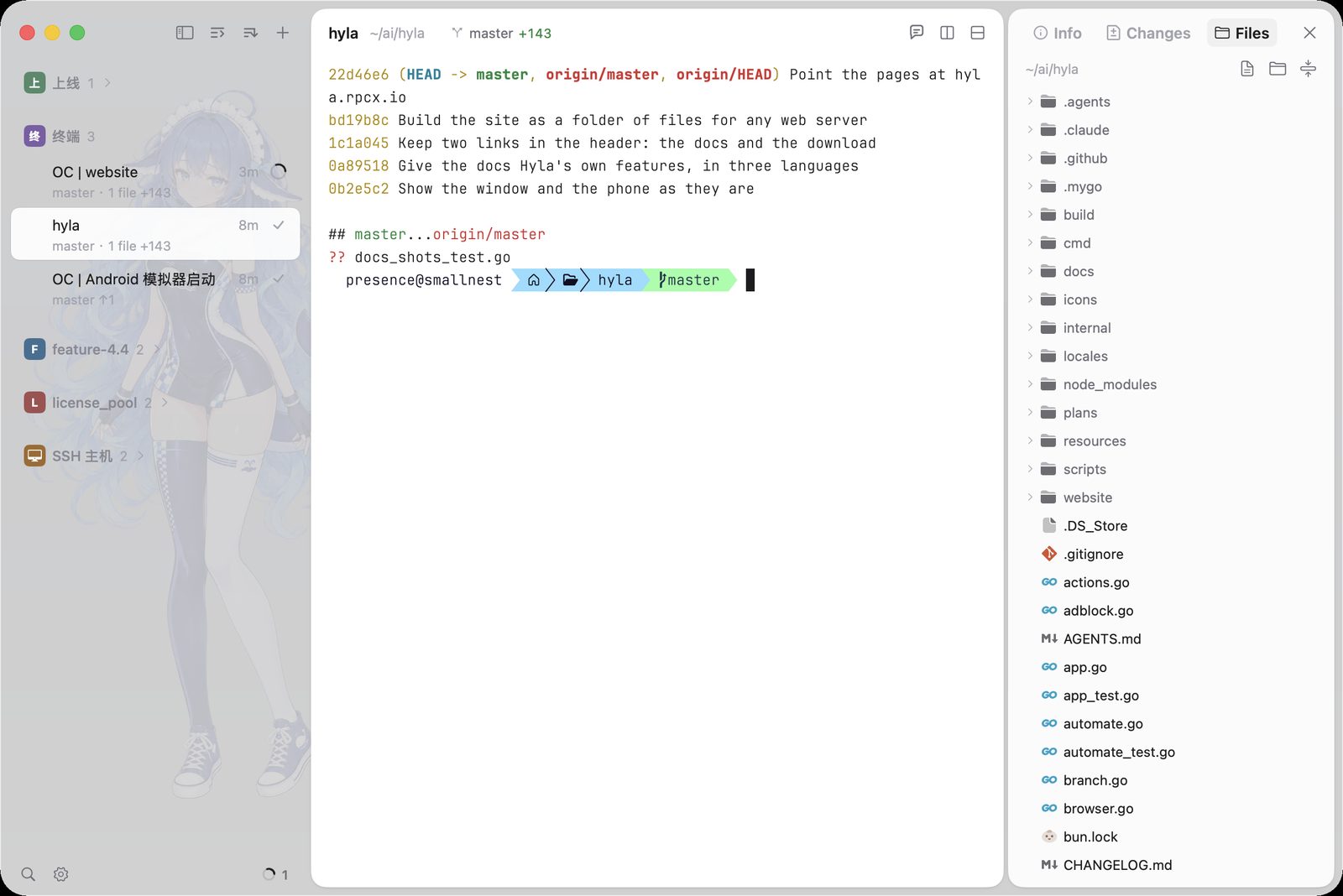
The Files view in the side panel, on the folder of the selected session.
Open it
Choose View › Toggle Files (⌥ ⌘ F), or press the Files button in the side panel. The tree follows the selected session: a project's folder, the home folder for a session that started there, or a folder on another machine.
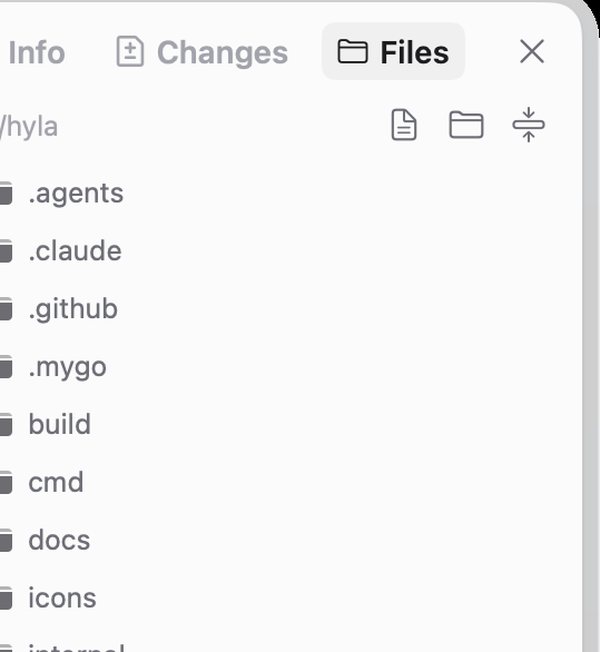
Folders unfold where they are; a file shows its type before you open it.
Read a file
Click a file to open it in the window. Text shows as text, an image as an image, and a binary file says it is one. Reading never edits anything.
To change it, open your editor from the terminal or let the agent do it, then open the file again.
Hand a file to a program
Drag a file from the tree into a pane and Hyla types its path there: a shell on this machine gets the path, a pane on another machine gets it uploaded first.
What it is not
Not an editor, and not a diff: Changes shows what an agent changed, file by file.